When network traffic suddenly increases at an industrial site, the problem is not always that the network itself has failed.
For example, an industrial router may connect a PLC, industrial PC, HMI, IP cameras, and other devices. One day, you notice that your cellular router is using far more 4G/5G data than usual, and the SIM card data plan is being consumed quickly.
The difficult question is usually not:
“How much data did the router use?”
It is:
“Which device is using all that data?”
If you can only see the total traffic generated by the router, finding the source of the problem can take a lot of time.
Here is a practical way to troubleshoot it.
Start by checking the total traffic on your industrial router.
Log in to the router's management interface and check the traffic on the WAN, 4G/5G, or other uplink connection.
For example:
If the total traffic is normal, the problem may not be related to the router's Internet connection.
If the total traffic is unusually high, continue with the next step.
The most useful step is to break down the router's total traffic by connected device.
For example, an industrial network may contain:
| Device | Normal Traffic | Current Traffic |
|---|---|---|
| PLC | Low | Low |
| HMI | Low | Low |
| Industrial PC | Medium | Very High |
| IP Camera | Medium | Very High |
| Data Acquisition Device | Medium | Normal |
If your industrial router provides device-level traffic statistics, you can identify which devices are consuming the most data instead of disconnecting devices one by one.
This is particularly useful for acellular router, where 4G/5G traffic is often limited by the SIM card data plan.
After identifying a high-traffic device, the next question is:What is causing the traffic?
For unusually high download traffic, check for:
For unusually high upload traffic, check for:
For example, if an IP camera normally generates little traffic but suddenly starts uploading a large amount of data continuously, check its video bitrate, recording uploads, and remote access settings before replacing the industrial router.
A traffic problem may not happen continuously.
Some devices generate large amounts of traffic only at specific times, such as:
After identifying a suspicious device, monitor it for a period of time.
A simple record can include:
Device → Time → Upload Traffic → Download Traffic
This makes it easier to determine whether the problem is continuous or occurs at specific times.
In an office network, excessive traffic from one computer may simply affect a few users.
In an industrial environment, the consequences can be more serious.
Consider a production site using a 4G/5G cellular router as its Internet gateway. If an industrial PC continuously downloads large amounts of data, it may quickly consume the SIM card's data allowance.
Once the data allowance is exhausted, the result may not simply be slower Internet access.
The remote site could lose connectivity, affecting remote maintenance and data transmission.
That is why traffic monitoring on an industrial router is not just about knowing how many gigabytes have been used.
It should help answer a more important question:
“Which device generated this traffic?”
If your industrial network uses a PUSR industrial router to connect multiple devices, start with the router's traffic statistics and monitoring functions.
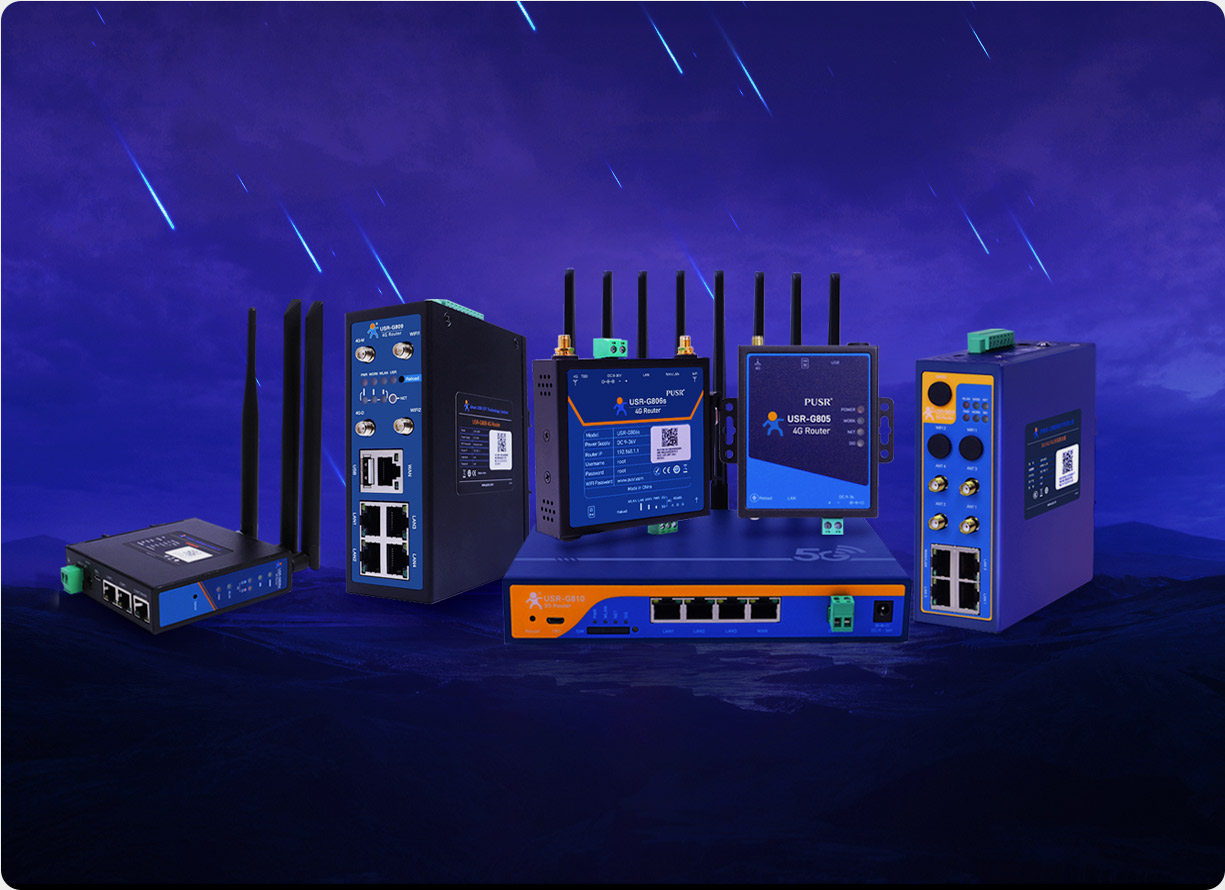
For example, the USR-G816 5G cellular Router can be used for 5G cellular connectivity, while PUSR also offers industrial routers for 4G networking scenarios.
A practical troubleshooting process is:
Total traffic is abnormal → Check device-level traffic → Identify the high-traffic device → Separate upload and download traffic → Check applications on that device → Continue monitoring
This approach is usually more effective than simply restarting the router whenever the network behaves abnormally.
If an industrial router provides 4G/5G connectivity for a factory, remote machine, or unattended site, don't wait until the SIM card is almost out of data before checking traffic.
A simple routine can help:
Check total traffic + monitor key devices + watch for changes in upload/download traffic.
When one device suddenly uses significantly more data than usual, you can investigate it before the problem becomes a network outage.
For acellular routerused in an industrial environment, knowinghow much data is being usedis only the first step.
Knowing which device is using that data is what helps you find the real problem.