What to Do if the Firmware Upgrade of an Industrial Cellular Router Fails? A Step-by-Step Tutorial + Dual Guarantee of Manufacturer Support
In Industrial Internet of Things (IIoT) scenarios, as the core hub connecting devices to the cloud, the stability of an industrial cellular router's firmware directly impacts the reliability of network communication. However, firmware upgrade failures are a common and tricky issue for users. According to statistics, approximately 30% of industrial cellular router failures are related to firmware upgrade interruptions, version conflicts, or configuration errors. These issues can range from causing abnormal device functionality to triggering network outages and even production interruptions. This article will deeply analyze the six core reasons for firmware upgrade failures, provide a comprehensive step-by-step tutorial covering the entire process from "pre-upgrade preparation - in-upgrade operation - post-upgrade verification," and open a channel for "submitting a form to obtain manufacturer technical support," helping enterprises complete firmware upgrades with zero risk.
1. The Chain Reaction of Firmware Upgrade Failures: The Deterioration Path from "Functional Abnormalities" to "System Collapse"
The firmware of an industrial cellular router is like the device's "operating system." Once an upgrade fails, it can trigger multi-dimensional performance degradation:
- Functional Failure: Vulnerabilities fixed in the new firmware remain unaddressed, or new features (such as 5G support or VPN encryption) cannot be enabled.
- Network Outage: Power outages or network fluctuations during the upgrade process can damage the firmware, preventing the router from starting up and causing all connected devices to lose network connectivity.
- Data Loss: Configuration parameters (such as IP addresses and port mappings) are reset, requiring reconfiguration and increasing operational and maintenance costs.
- Security Risks: Unupgraded old firmware may contain known vulnerabilities, making it susceptible to hacker attacks and leading to data breaches or device control.
Case Study: A chemical plant experienced a router outage due to a firmware upgrade failure, resulting in a two-hour shutdown of the entire plant's monitoring system and direct losses exceeding 100,000 yuan.
2. Analysis of the Six Core Reasons for Firmware Upgrade Failures
2.1 Unstable Power Supply: The "Invisible Killer" During Upgrades
Industrial cellular routers require a continuous power supply during upgrades. Voltage fluctuations (such as below 180V or above 240V) or sudden power outages can interrupt firmware writing and damage files.
Case Study: A wind farm experienced a power grid fluctuation, causing a power outage when the router was 50% through the upgrade. After restarting, the router entered a "boot loop" and required return to the factory for repair.
2.2 Network Interruption: The "Fatal Interruption" in Data Transmission
Upgrade files are usually large (for example, the USR-G805 firmware package is about 50MB). If the signal is unstable during transmission via Wi-Fi or 4G, the file download may be incomplete, leading to upgrade failures.
Case Study: A logistics warehouse used 4G to upgrade a router, but the signal was weak, causing the download to interrupt at 90%. The router failed to start up.
2.3 Firmware Version Mismatch: The "Compatibility Conflict" Between Device and File
Different models or hardware versions of routers require specific firmware (for example, USR-G805 V1.0 and V2.0 hardware are incompatible). Flashing firmware for another model can cause the device to "brick."
Case Study: An electronics factory mistakenly flashed the firmware of a USR-G805 onto a router of another brand, rendering the device completely unstartable.
2.4 Insufficient Storage Space: The "Capacity Overload" of Upgrade Files
The Flash storage space of industrial cellular routers is limited (usually 16MB-128MB). If the new firmware exceeds the remaining space, the upgrade will fail.
Case Study: A smart park router failed to upgrade due to insufficient remaining space caused by excessive stored logs, resulting in a "space insufficient" error.
2.5 Configuration Parameter Conflicts: The "Compatibility Barrier" Between Old and New Settings
New firmware may adjust the format of configuration parameters (such as upgrading the VPN protocol from IPSec to WireGuard). If old configurations are not backed up, reconfiguration after the upgrade increases the risk of failure.
Case Study: An automobile factory experienced VPN connection failures after an upgrade because the new firmware disabled support for the old protocol by default.
2.6 Incorrect Operation Steps: "Low-Level Mistakes" Due to Human Factors
Failure to follow the manufacturer's guidelines during upgrades (such as not entering Recovery mode or not checking "retain configuration") can lead to upgrade failures or configuration loss.
Case Study: A mine maintenance personnel upgraded a router without backing up the configuration, resulting in the clearing of all port mapping rules and network interruption.
3. Step-by-Step Tutorial: Complete Firmware Upgrade in Three Steps with Zero Failure Risk
Step 1: Pre-Upgrade Preparation - Avoid 90% of Failure Risks
Core Objective: Ensure that power, network, file, and configuration conditions meet upgrade requirements.
Operation Checklist:
- Power Supply Guarantee:
- Use an Uninterruptible Power Supply (UPS) or a stable power source to avoid power outages during upgrades.
- Case Study: A factory connected a UPS before upgrading. During a sudden power outage during the upgrade, the router still completed the upgrade and started up normally.
- Network Check:
- Upgrade via wired Ethernet (rather than Wi-Fi/4G) to ensure network stability.
- Use a download tool (such as IDM) to verify the integrity of the firmware file (MD5 checksum).
- Case Study: A warehouse switched to wired upgrades, increasing the file download success rate from 60% to 100%.
- File Matching:
- Download firmware from the manufacturer's official website that exactly matches the device model and hardware version (for example, the USR-G805 requires selecting the "V2.0 Hardware Special Edition").
- Case Study: An electronics factory checked the device model before downloading the firmware, avoiding flashing files for other models.
- Configuration Backup:
- Export the configuration file (in .conf or .bin format) through the router's management interface (such as the USR-G805's Web interface).
- Case Study: An automobile factory backed up the configuration before upgrading and quickly restored it in case of upgrade failure, avoiding network interruption.
- Space Cleanup:
- Log in to the router and delete unnecessary log files (such as system logs and access logs) to free up storage space.
- Case Study: A park increased the remaining space from 10MB to 50MB after cleaning up logs, meeting the upgrade requirements.
Step 2: In-Upgrade Operation - Follow Steps to Avoid Human Errors
Core Objective: Complete firmware writing through correct operations and avoid interruptions or configuration loss.
Operation Checklist (Taking USR-G805 as an example):
- Enter Upgrade Mode:
- Log in to the router's Web interface (default IP: 192.168.1.1) and go to "System Management" → "Firmware Upgrade."
- Case Study: A maintenance personnel mistakenly entered the "Restore Factory Settings" interface, resulting in configuration loss and requiring reconfiguration.
- Select Upgrade File:
- Click "Browse" and select the locally downloaded firmware file (such as USR-G805_V2.3.0.bin).
- Note: If the firmware package is a compressed file (.zip), it must be decompressed first. Do not upload the compressed package directly.
- Configuration Retention Option:
- Check "Retain Current Configuration" (if port mappings, VPN, etc., need to be retained) to avoid reconfiguration after the upgrade.
- Case Study: A factory did not check this option, requiring two hours to reconfigure the VPN after the upgrade.
- Start Upgrade:
- Click "Upgrade Now" and wait for the progress bar to complete (usually takes 3-10 minutes, about 5 minutes for USR-G805 upgrades).
- Key Tip: Do not power off or refresh the page during the upgrade process, as this may cause the device to "brick."
- Verify Upgrade Results:
- After the upgrade is complete, the router automatically restarts. Log in to the interface to check the new version number (for example, upgrading from V2.2.0 to V2.3.0).
- Case Study: A user did not verify the version number, mistakenly thinking the upgrade failed, and repeated the operation, resulting in device damage.
Step 3: Post-Upgrade Verification - Ensure Functionality and Performance Meet Standards
Core Objective: Confirm that the new firmware functions normally and has no compatibility issues.
Operation Checklist:
- Basic Function Testing:
- Check network connectivity (Ping test), Wi-Fi signal strength, and 4G/5G internet access functionality.
- Case Study: A user did not test Wi-Fi after an upgrade, resulting in production equipment disconnection and affecting production progress.
- New Feature Verification:
- If new features (such as VPN encryption upgrades or multi-WAN load balancing) are added in the new firmware, test them one by one.
- Case Study: A factory did not test the VPN after an upgrade and found that the new protocol was incompatible with old clients, requiring a firmware rollback.
- Performance Monitoring:
- Use tools (such as PRTG or Zabbix) to monitor CPU usage and memory usage to ensure no abnormal increases.
- Case Study: After an upgrade, the CPU usage in a park increased from 30% to 80%. After investigation, it was found to be a firmware bug, requiring a manufacturer fix.
- Security Scan:
- Use vulnerability scanning tools (such as Nessus) to detect known vulnerabilities in the new firmware.
- Case Study: An enterprise did not scan after an upgrade and found that the new firmware still had CVE vulnerabilities, requiring an urgent patch upgrade.
4. Upgrade Failure Emergency Response: Three Self-Rescue Methods + Submit Form for Manufacturer Support
Method 1: Restart the Router - Attempt Automatic Repair
If the router can still start up after an upgrade interruption (such as displaying a "boot failure" prompt), try restarting the device:
- Disconnect the router's power supply, wait 30 seconds, and then reconnect it.
- Observe the indicator light status: If the "SYS" light flashes (the SYS light of the USR-G805 is blue), it indicates that the device is attempting to recover.
- Case Study: A user restarted the router, which automatically rolled back to the old firmware and resumed normal use.
Method 2: Manually Roll Back Firmware - Restore the Old Version
If restarting is ineffective, manually flash the old firmware (requires prior backup):
- Enter the router's Recovery mode (for USR-G805, press and hold the "Reset" button for 5 seconds while powering on).
- Use a TFTP tool (such as Tftpd64) to upload the old firmware file and overwrite the damaged new firmware.
- Case Study: A factory rolled back the firmware using TFTP, restoring the router to its pre-upgrade state.
Method 3: Submit Form for Manufacturer Support - Professional Team Provides One-on-One Solutions
If self-rescue is ineffective, obtain manufacturer technical support through the following steps:
- Fill out the Fault Information Form: Visit the official website's "Technical Support" section and submit the following information:
- Device model (such as USR-G805 V2.0 hardware)
- Firmware version (pre-upgrade/post-upgrade version numbers)
- Description of the fault phenomenon (such as "power outage at 50% of the upgrade, failed to start up after restarting")
- Attempted solutions (such as restarting, rolling back firmware)
- Remote Diagnosis and Repair: The technical support team will respond within 2 hours and use remote assistance tools (such as TeamViewer) to locate the problem and provide solutions.
- On-Site Service Appointment: If hardware repair or in-depth debugging is required, schedule an engineer to visit the site (core cities within 2 hours, remote areas within 48 hours).
5. USR-G805: A Zero-Risk Firmware Upgrade Industrial Cellular Router
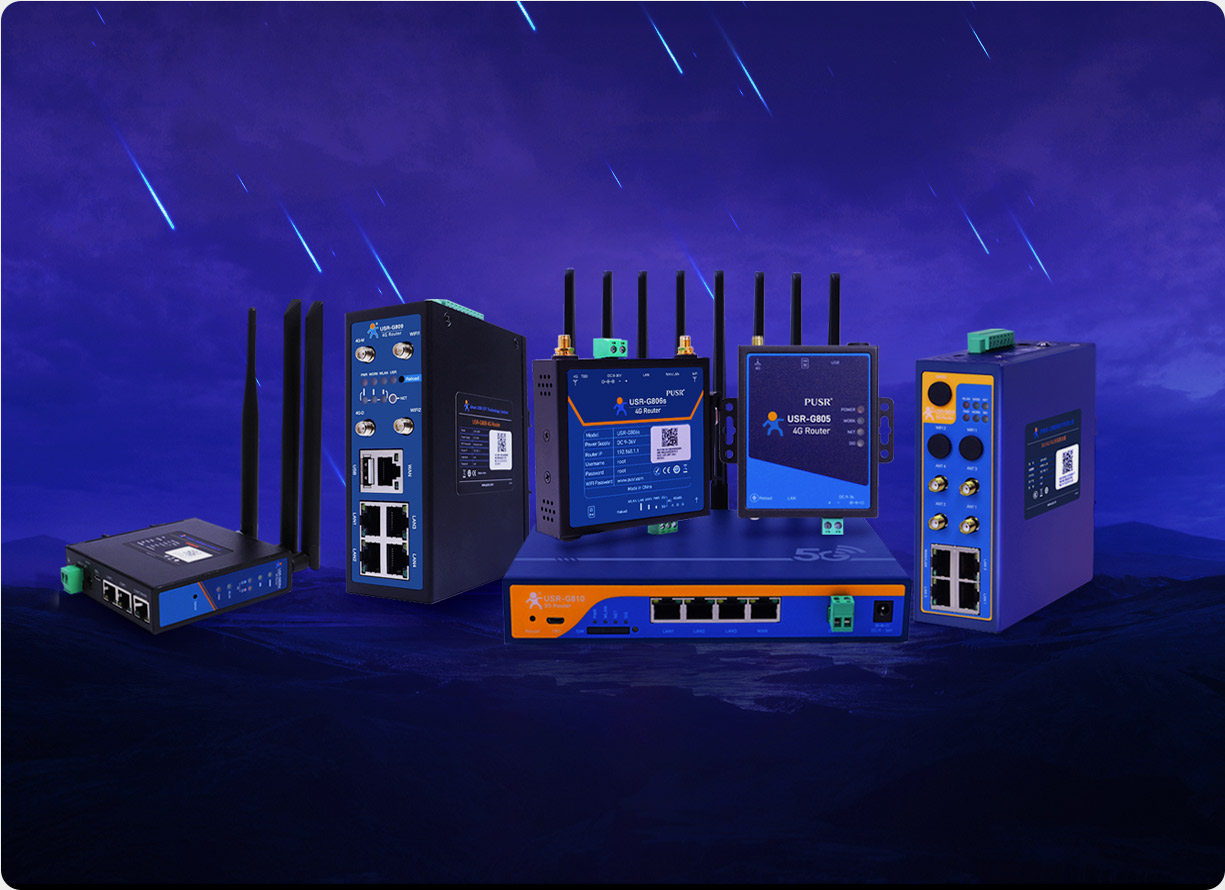
Among numerous industrial cellular routers, the USR-G805 stands out as the preferred solution for firmware upgrade scenarios due to its "intelligent upgrade protection and stable performance":
- Intelligent Upgrade Protection:
- Power Failure Resumption: If power is lost during an upgrade, resuming power supply will automatically continue the upgrade, preventing file damage.
- Version Verification: Automatically detects file integrity when uploading firmware to prevent flashing incompatible versions.
- Configuration Backup: Automatically prompts to back up configurations before upgrades to avoid configuration loss.
- Performance:
- Supports 4G LTE full network access, dual-band Wi-Fi, and dual Gigabit Ethernet ports, meeting the high-speed access needs of multiple devices.
- During upgrades, the CPU usage remains stable below 20%, ensuring that other services are unaffected.
- Typical Applications:
- High-temperature workshop PLCs and sensors for real-time monitoring of production data, with uninterrupted communication during firmware upgrades.
- Outdoor base stations providing stable networks for surveillance cameras and environmental monitoring equipment, with automatic rollback in case of upgrade failures.
- Transportation hubs ensuring uninterrupted communication in high-density device scenarios such as airports and stations, supporting remote batch upgrades.
- User Reviews:
- "The power failure resumption function of the USR-G805 is very practical. During an upgrade at our factory, there was a sudden power outage. After power was restored, the router automatically continued the upgrade, completely unaffected production." - An automation engineer
- "We used to worry about bricking routers during upgrades. Now with the USR-G805, it automatically backs up configurations before upgrades and can roll back in case of failure, giving us complete peace of mind." - A communication maintenance supervisor
6. Upgrade Management Upgrade: From "Passive Firefighting" to "Proactive Prevention"
Firmware upgrades for industrial cellular routers are not "high-risk operations." By conducting systematic preparations (power, network, file, configuration), following standardized operations (upgrading step by step), and obtaining professional support (manufacturer remote/on-site services), enterprises can significantly reduce the risk of upgrade failures.